Managing Quests
The Quest Picker is your one-stop tool for building the session backlog. It combines search, filtering, manual entry, and list management in a single component.
Where to Find It
Section titled “Where to Find It”The Quest Picker appears in two places:
- Create page — the QUESTS step of session creation
- Active session — via the settings button (gear icon) during a session
Searching Integrations
Section titled “Searching Integrations”If you have connected a project tool (Jira, Linear, or Azure DevOps), type in the search bar to find issues. Results appear in a dropdown overlay.
- Click a result to add it to your session list
- Already-added quests show a checkmark and are dimmed
Switching Sources
Section titled “Switching Sources”Click the source chip (left of the search bar) to switch between connected providers. Each provider has its own set of filters and search context.
Filtering Results
Section titled “Filtering Results”Click the filter icon (right of the search bar) to open the filter bar. Filter by project, board, sprint, status, and more — options vary by provider.
Filters cascade: selecting a project narrows the available sprints, statuses, and other downstream options.
Saved Filter Combos
Section titled “Saved Filter Combos”Bookmark your most-used filter combinations for quick reuse:
- Set your desired filters
- Click the bookmark icon in the filter bar to save the current combination
- Up to 3 saved combos per provider — adding a 4th replaces the oldest
- Click a saved combo pill to apply those filters instantly
If a saved combo references options that no longer exist (e.g., a closed sprint), the valid parts are applied and you’ll see a notification about the missing filters.
Manual Entry
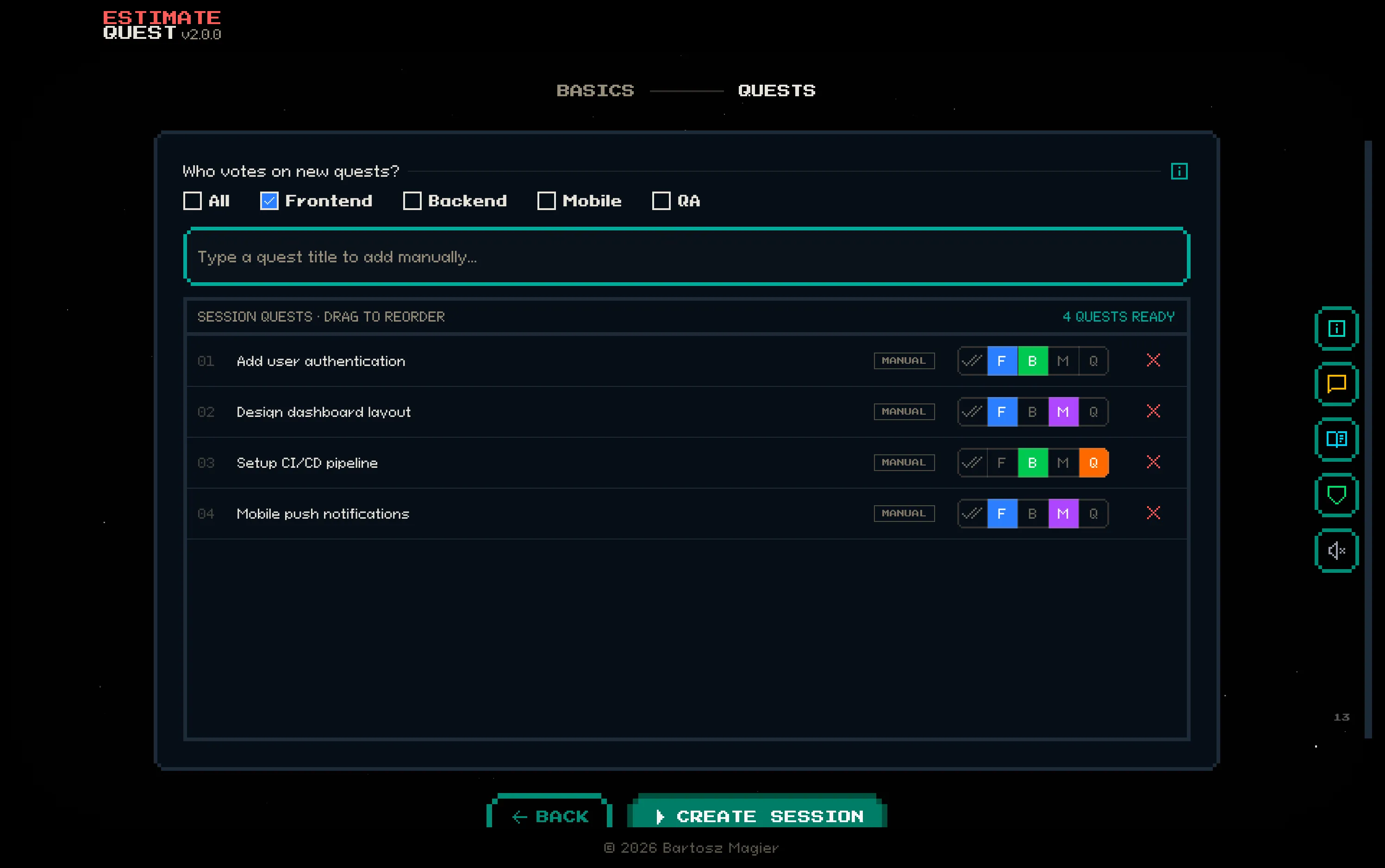
Section titled “Manual Entry”No integration connected? Type a quest name in the search bar and press Enter to add it manually. You can also press Alt+Enter to force manual add even when an integration is active.
Multi-select Mode
Section titled “Multi-select Mode”For bulk operations, toggle multi-select mode:
- Press Cmd+A (Mac) or Ctrl+A (Windows) to enter multi-select mode and select all addable results
- Click individual rows to toggle checkboxes
- Press Space to toggle the highlighted row
- Click Add N quest(s) in the sticky bar to bulk-add all checked items
Quest List
Section titled “Quest List”Added quests appear in the session list below the search bar:
- Drag to reorder — the order determines the voting sequence
- Click × to remove a quest
- Each quest shows its group assignment, which you can customize per-quest
You can add up to 100 quests per session.
Quest States
Section titled “Quest States”During a session, each quest progresses through these states:
| State | Description |
|---|---|
| Pending | Not yet voted on — waiting in the queue |
| Voting | Currently being estimated — voters see their cards |
| Completed | Final estimate has been set |
| Skipped | Moderator skipped this quest without setting an estimate |
The moderator controls transitions between states via the session controls.