Creating a Session
Any team member can create a session and become its moderator. The create form collects everything needed to start a planning poker session.
Session Creation Form
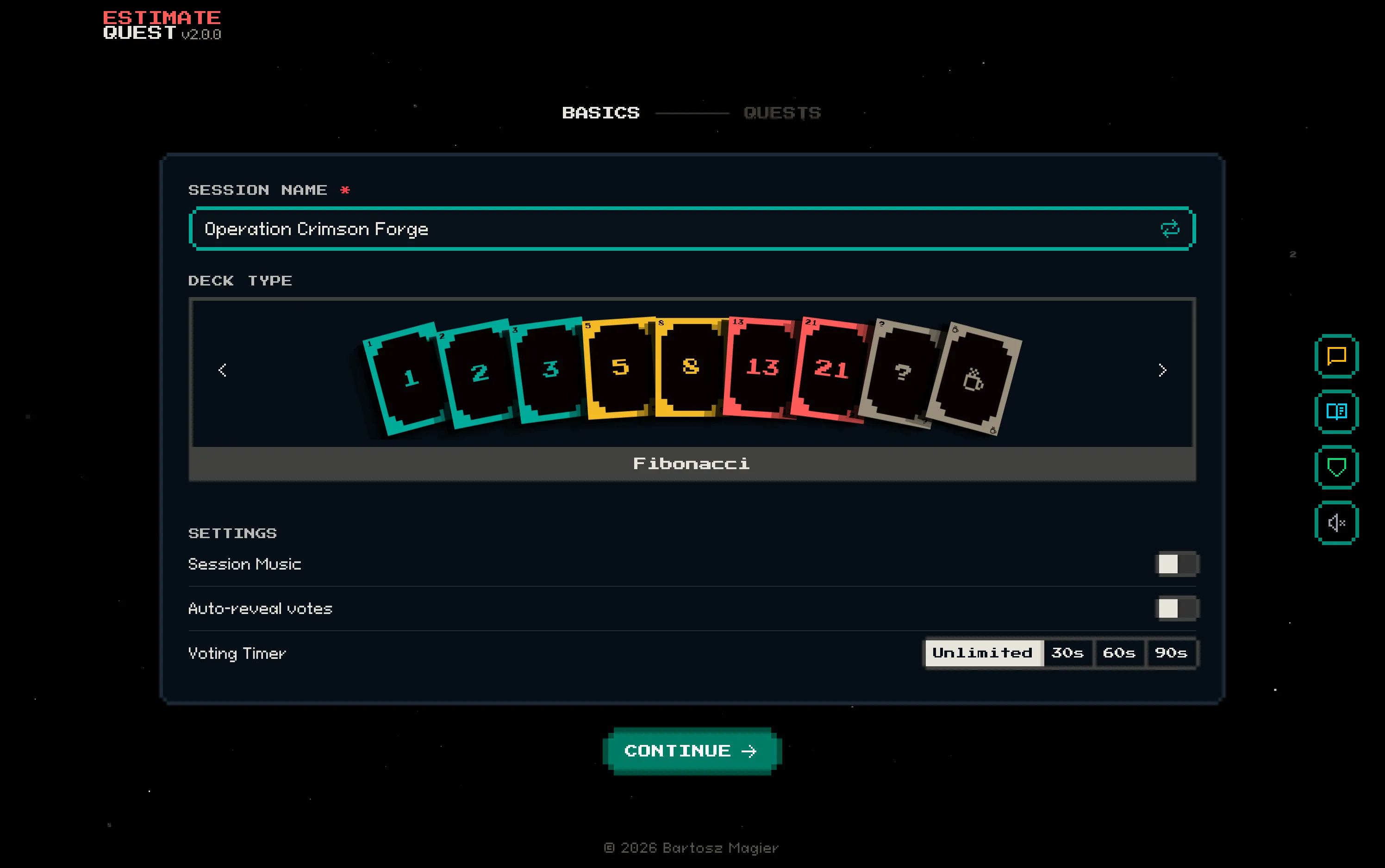
Section titled “Session Creation Form”Navigate to the home page and click NEW GAME, or go directly to /session/create. The creation wizard has two steps: BASICS (name, deck, settings) and QUESTS (backlog).
Required Fields
Section titled “Required Fields”| Field | Description | Limit |
|---|---|---|
| Session Name | A name for the session (e.g., “Sprint 24 Planning”) | 100 characters |
| Quests | At least one quest with a title and assigned group(s) | Up to 100 quests |
| Deck Type | The estimation scale to use | Fibonacci, Linear, or T-Shirt |
Optional Controls
Section titled “Optional Controls”| Control | Description | Default |
|---|---|---|
| Session Music | Toggle 8-bit background music on/off | Off |
| Auto-reveal | Automatically reveal votes when all voters have voted | Off |
| Voting Timer | Set a countdown per quest (30s, 60s, or 90s) | Unlimited |
| Random Name | Click the reload icon next to Session Name to generate a random name | — |
Setting Up Quests
Section titled “Setting Up Quests”Click CONTINUE to advance to the QUESTS step. The Quest Picker lets you build your backlog:
- Search connected integrations (Jira, Linear, Azure DevOps) for issues
- Filter by project, sprint, status, and more
- Type a name and press Enter to add manual quests
- Multi-select (Cmd/Ctrl+A) to bulk-add multiple results at once
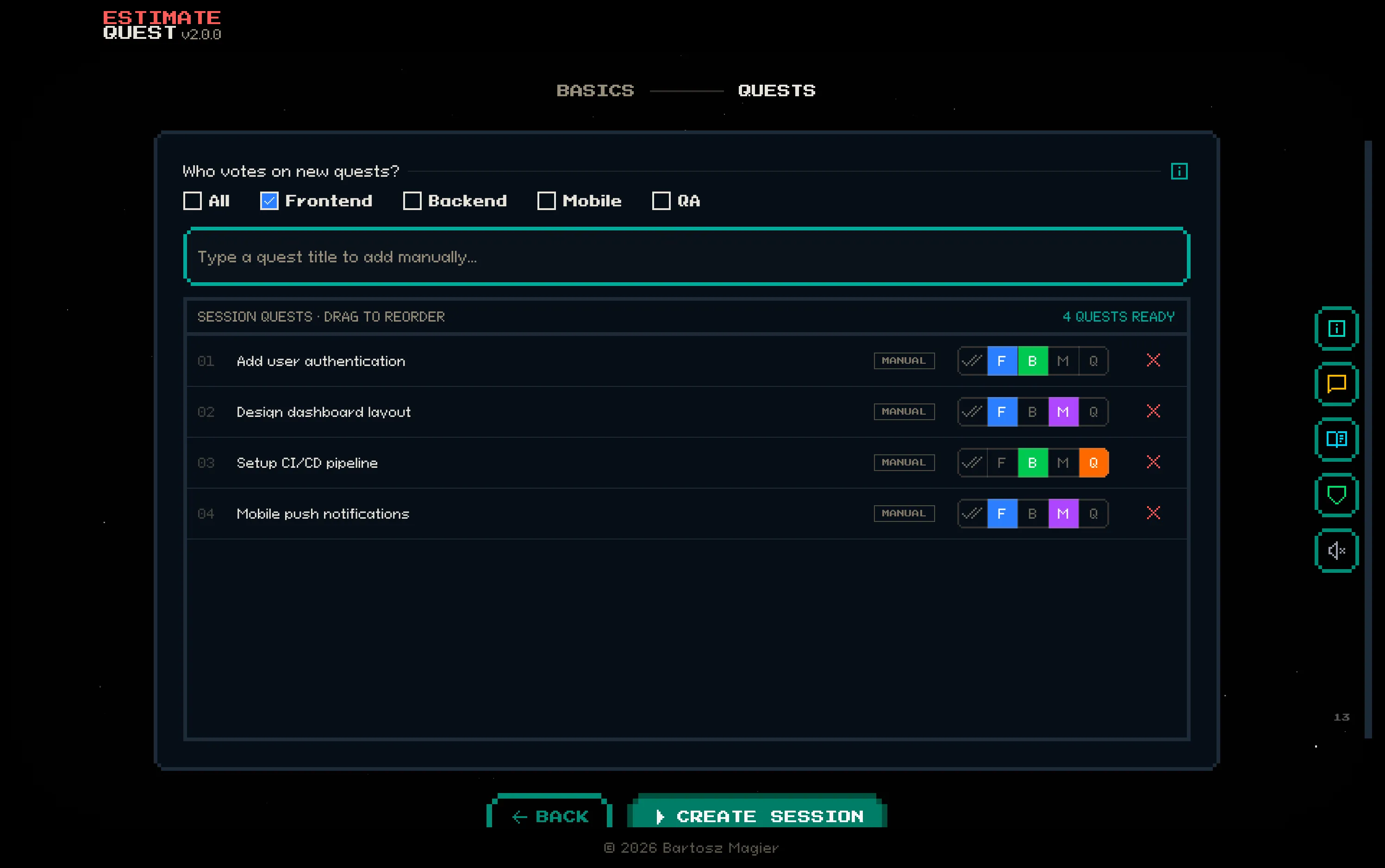
At least one quest is required to create the session. You can add up to 100 quests.
Choosing a Deck Type
Section titled “Choosing a Deck Type”The deck type determines which estimation cards voters see. A live preview of the deck is shown as you select:

- Fibonacci —
1, 2, 3, 5, 8, 13, 21,? + — best for most teams - Linear —
1, 2, 3, 4, 5, 6, 7, 8, 9, 10,? — simpler scale - T-Shirt —
XS, S, M, L, XL, XXL,? — relative sizing without numbers
The deck type cannot be changed after session creation.
Starting the Session
Section titled “Starting the Session”Click CREATE SESSION to create the session. You’ll be redirected to the session page with a unique 6-digit code.
A join modal will appear where you enter your moderator name and choose your avatar. This is the same flow that voters and spectators use when joining.
Once you’ve joined, share the 6-digit code with your team so they can join too.